
Case study: Hoyoverse Sandboxie
Test platform:
x86_64 Processor
Windows 11 Pro 21H2 OS build 22000.2538
Sandboxie-Plus x86_64 v1.12.3
Game Tested:
[Running] Genshin Impact v4.3.0
Step to reproduce:
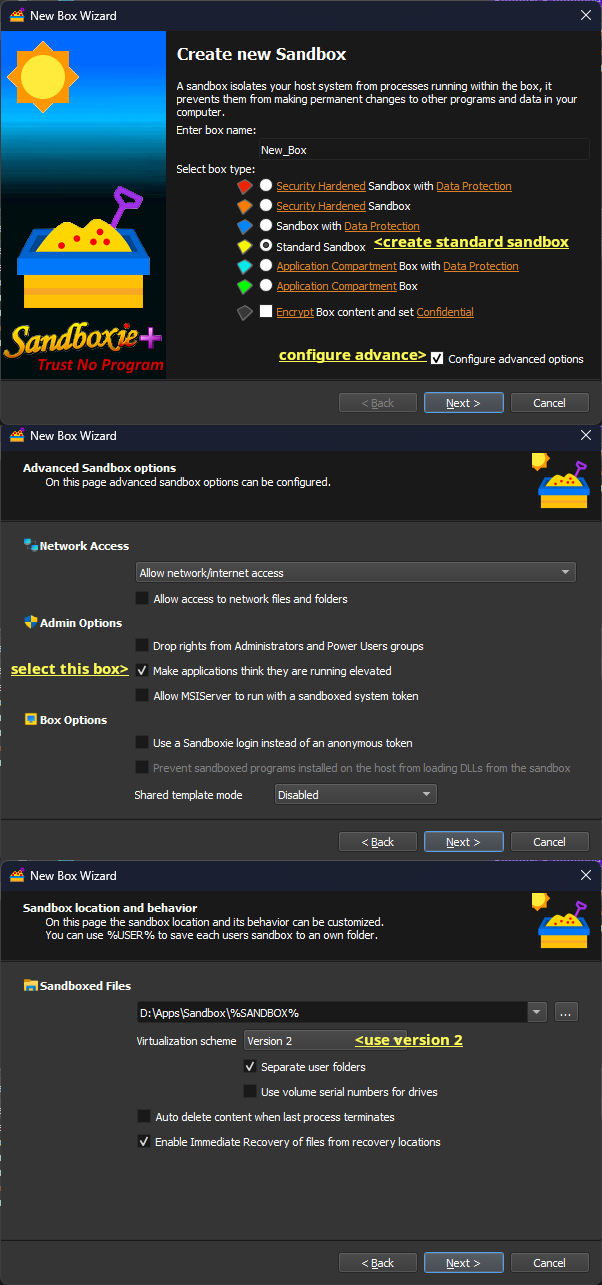
Create a new Standard sandbox.
Sandbox > Create new box > Select box type as Standard Sandbox
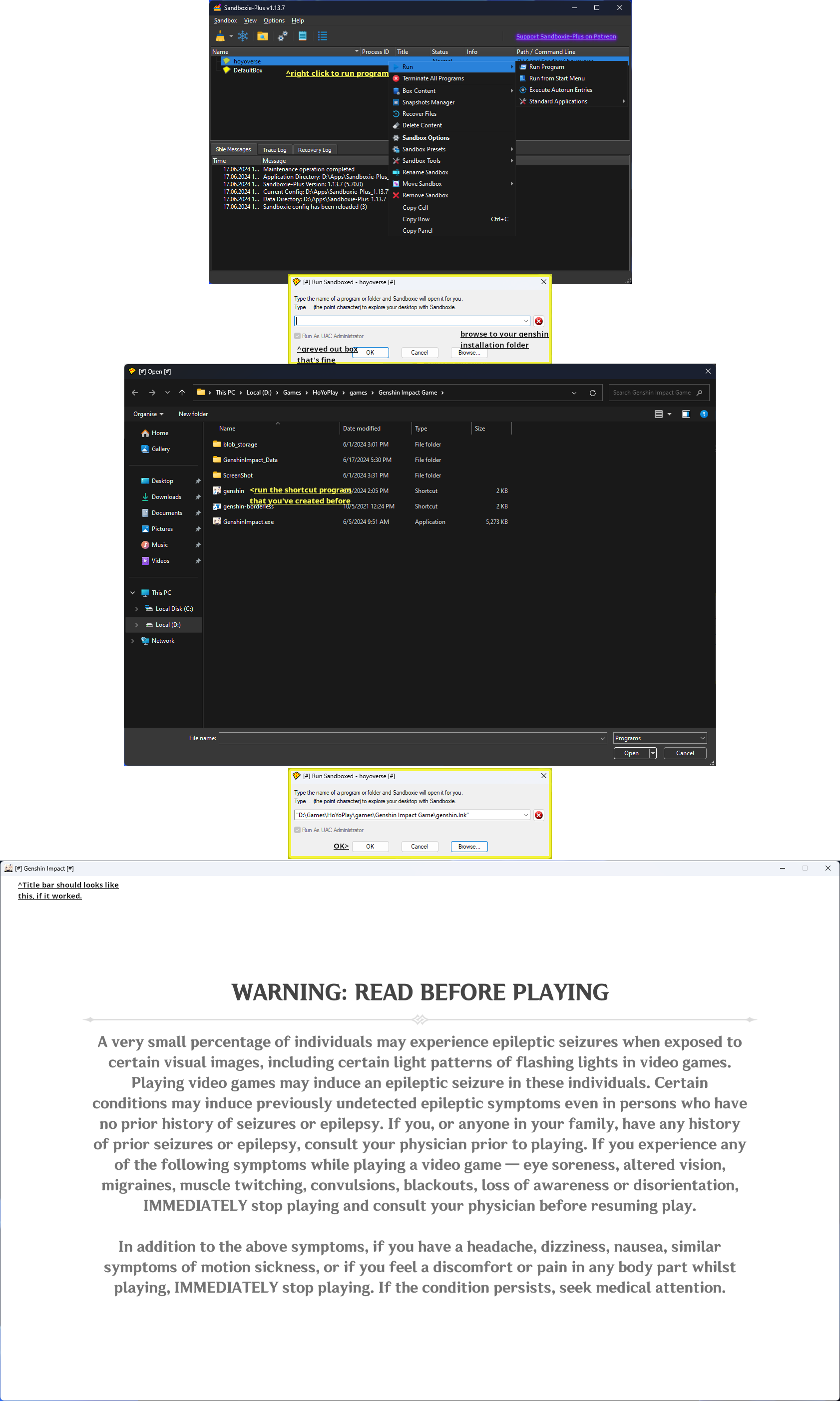
Run by right-clicking the program.
Browse Genshin Impact.exe from your “Genshin Impact Game” directory (not launcher.exe). [1 issue]
Select Run as UAC Administrator, and click OK.
Accept Sandboxie UAC prompt.
Window may appear incorrectly if you have previously played the game before.
Win + Tab or Alt + Tab might fix the issue.
| [1] issue-fixed WINDOWS 11 PRO 23H2 BUILD 22631.3007 | SANDBOXIE 1.12.9 | Genshin v4.4 08/02/24 |
Download and install fresh Sandboxie-Plus v1.12.9
Open Genshin Impact Game installation directory. Create a shortcut of GenshinImpact.exe
Open Sandboxie App, Create a new Standard Box, and check “Configure advance option”. [Next]
Virtualization Scheme 2. [Next]
Admin option, Check “Make application think they are running elevated”. [Next and Finish]
Run by right-clicking the program.
Browse Genshin Impact (Shortcut).lnk from your “Genshin Impact Game” directory (not launcher.exe or Genshin Impact.exe).
“Run as UAC Administrator” may appear greyed out but that’s fine, click OK.
Accept Sandboxie UAC prompt.
Window may appear incorrectly if you have previously played the game before.
Win + Tab or Alt + Tab might temporarily fix the issue. Set the correct resolution after log in.
Comment: From 08/02/24 on ward I will be using WINDOWS 11 Pro 23H2.
UPDATE: 17/06/24
Genshin v4.7 and Sandboxie-Plus 1.13.7
Added image guide
[Not yet tested] Honkai Impact 3
[Not yet tested] HSR
Ban Status? N/A
Post update log (DD/MM/YYYY):
Original posted on 15/12/2023
Genshin new account created on 15/12/2023
Genshin v4.3.0 tested and worked 28/12/2023
Genshin v4.4.0 tested and worked 06/02/2024
Genshin v4.4* 08/02/2024
Genshin v4.6 26/04/2024
Genshin v4.7 17/06/2024 with Sandboxie-Plus 1.13.7
Genshin v5.0 03/09/2024
